Browsing & Searching Cards

The Browse page (/search) is your main hub for discovering cards. It combines powerful search with manual filters to help you find exactly what you're looking for.

At the top of the page you'll find the search bar with two key controls:

Format Toggle

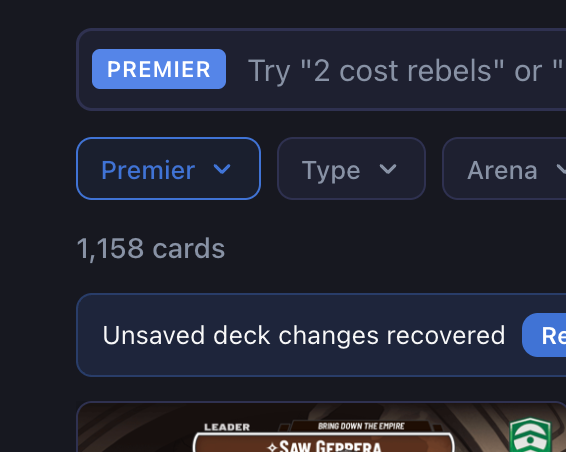
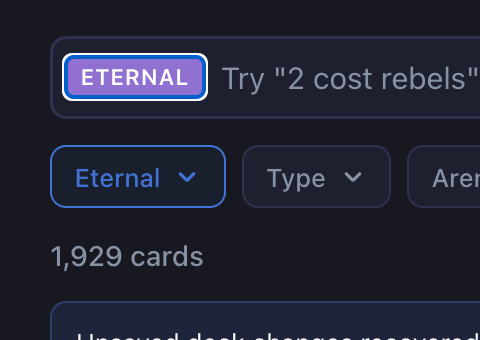
The button on the left side of the search bar switches between Premier and Eternal formats:

  • Premier (blue) — Shows cards from the current competitive rotation

  • Eternal (purple) — Shows cards from all released sets

Screenshot: Format toggle on search bar

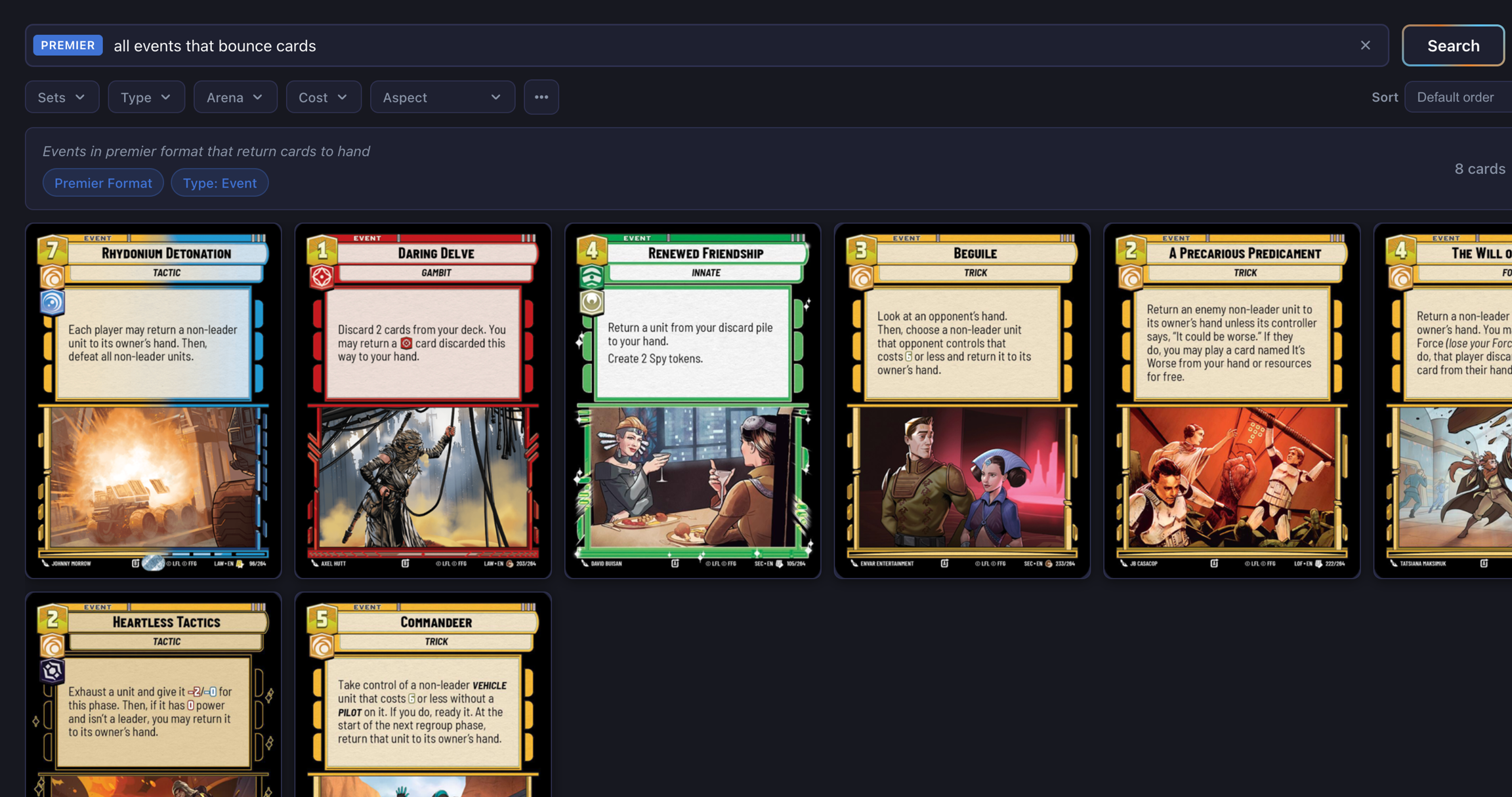
Type a query in plain English and hit Search or press Enter. Some examples:

  • "2 cost rebels" — finds 2-cost cards with the Rebel trait

  • "units with Sentinel" — finds Unit cards that have the Sentinel keyword

  • "legendaries with indirect damage" — finds Legendary rarity cards with indirect damage abilities

The search works in three stages:

  1. Single-word queries match card names instantly (client-side)

  2. Multi-word queries first try matching card titles

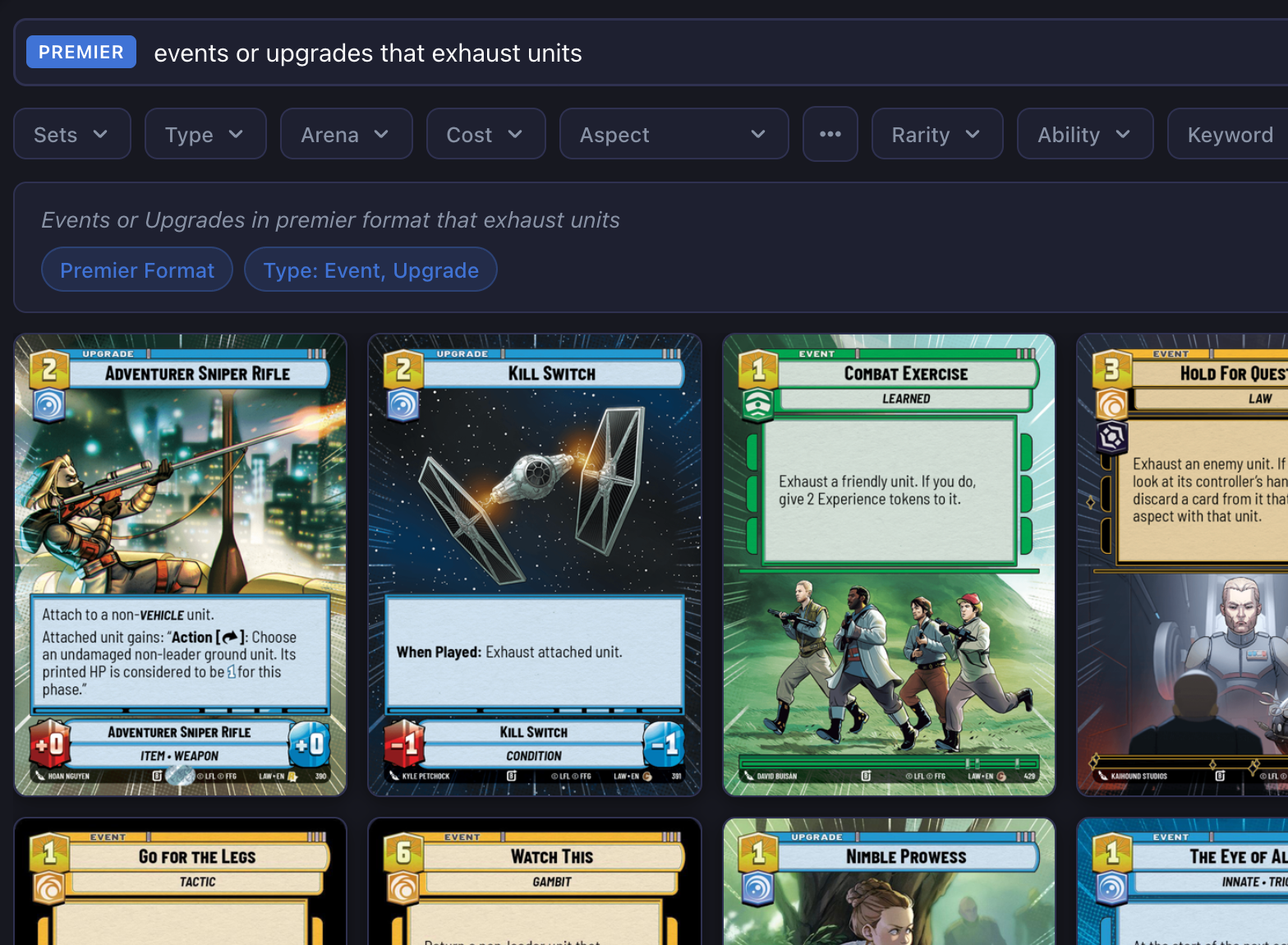
  3. If no title matches, the query is sent to an AI-powered search that interprets your intent and returns matching cards

AI search requires an approved account. See Getting Started for details.

Screenshot: Search results for a natural language query

Click the X button in the search bar to clear your query and return to browsing all cards.

Manual Filters

Below the search bar, you'll find filter dropdowns that let you narrow results precisely. These work alongside search results — apply filters to refine what the search returned, or use them on their own to browse.

Screenshot: Manual filter bar

Sets

Select which card sets to include. Quick-select buttons let you choose Premier or Eternal format pools in one click, or pick individual sets with checkboxes.

Type

Filter by card type: Unit, Event, Upgrade, Leader, Base, or Token. Select multiple types to see all of them (OR logic).

Arena

Filter by arena: Ground or Space.

Cost

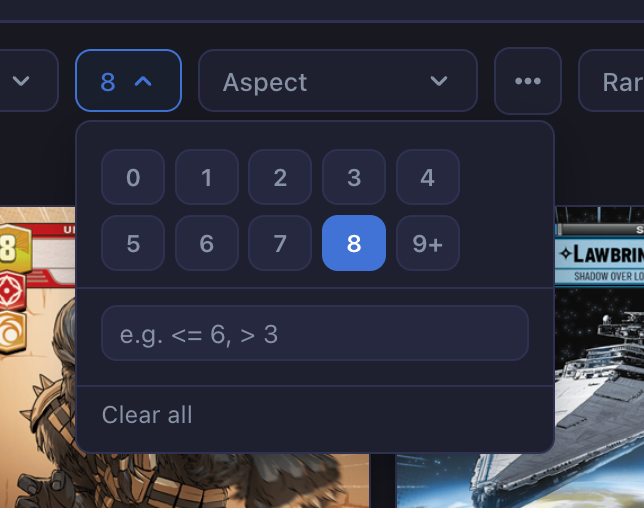
Two ways to filter by cost:

  • Quick chips — Click the numbered buttons (0–9) to toggle specific costs. The "9" chip includes 9 and above.

  • Expression — Type an expression like >= 3, < 5, or = 2 in the text field. Suggestions appear as you type.

Screenshot: Cost filter with chips and expression

Aspects

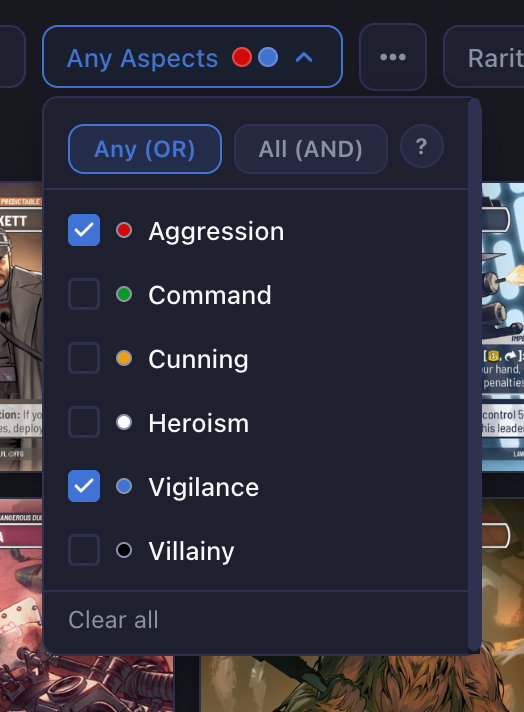
Filter by card aspects (Vigilance, Command, Aggression, Cunning, Heroism, Villainy) with three matching modes:

  • Deck — Automatically available when your deck has a Leader and Base. Shows only cards playable without an aspect penalty based on your leader and base's aspects.

  • Any (OR) — Shows cards that have at least one of the selected aspects

  • All (AND) — Shows cards that have all of the selected aspects

Click the ? icon next to the aspect filter for a detailed explanation of each mode.

Screenshot: Aspect filter with mode selector

More Filters

Click the three-dot button (...) to reveal additional filters:

  • Rarity — Common, Uncommon, Rare, Legendary, Special (with color indicators)

  • Ability — Filter by card abilities like Ambush, Overwhelm, Sentinel, Restore, etc.

  • Keyword — Filter by card keywords

  • Trait — Searchable list of all card traits (e.g., Rebel, Imperial, Jedi). Type to filter the trait list, then use arrow keys to navigate.

This section auto-expands if any of these filters are already active.

Filter Chips

When filters are active, colored chips appear below the filter bar showing exactly what's applied. A Clear filters button appears on the right to reset everything at once.

If your results came from a natural language search, an explanation of the search interpretation appears alongside the chips.

Screenshot: Active filter chips with clear button

View Controls

On the right side of the toolbar:

Sort

Choose how cards are ordered:

  • Default order — Standard card numbering

  • Cost: Low to High

  • Cost: High to Low

View Mode

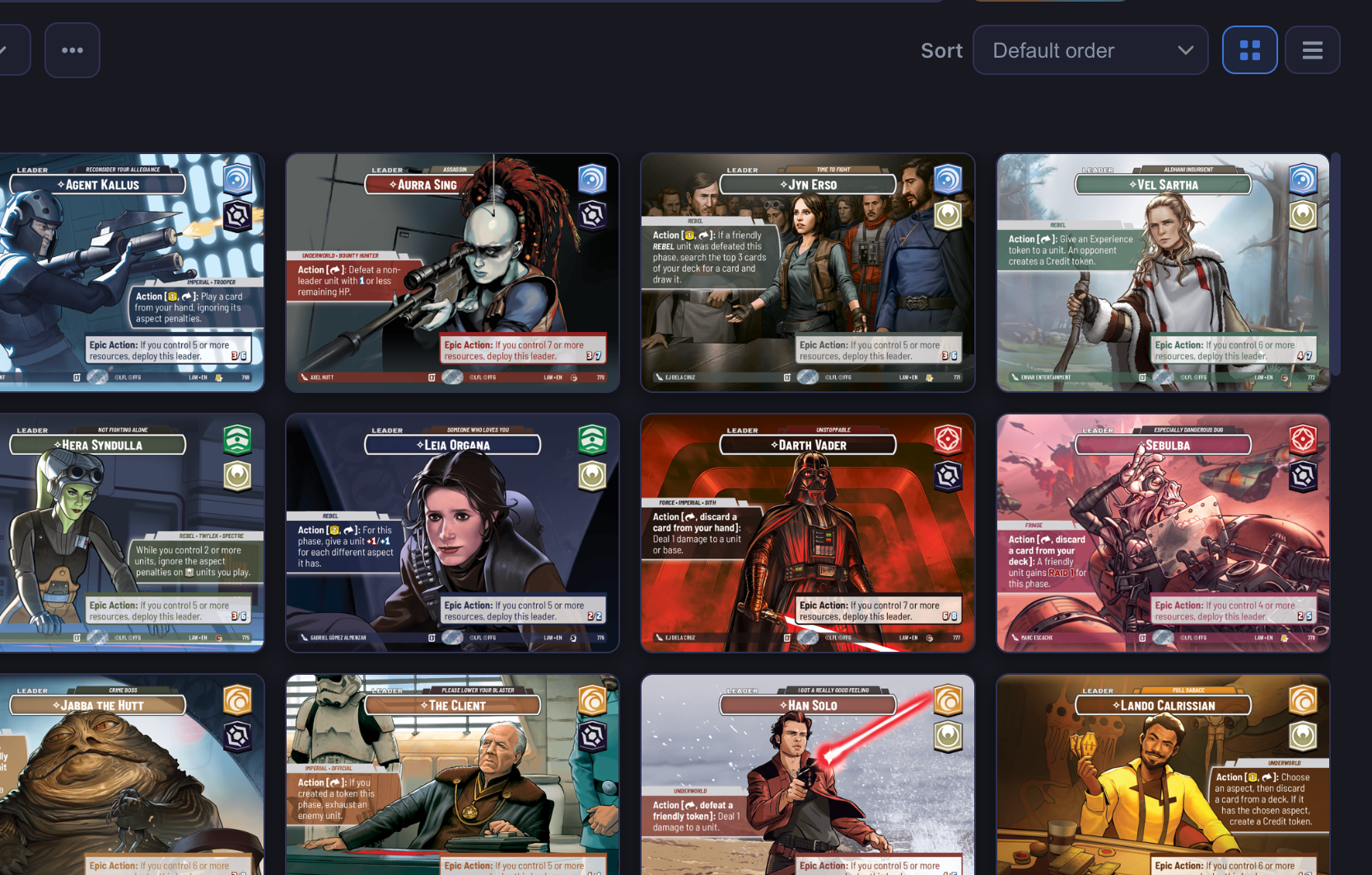
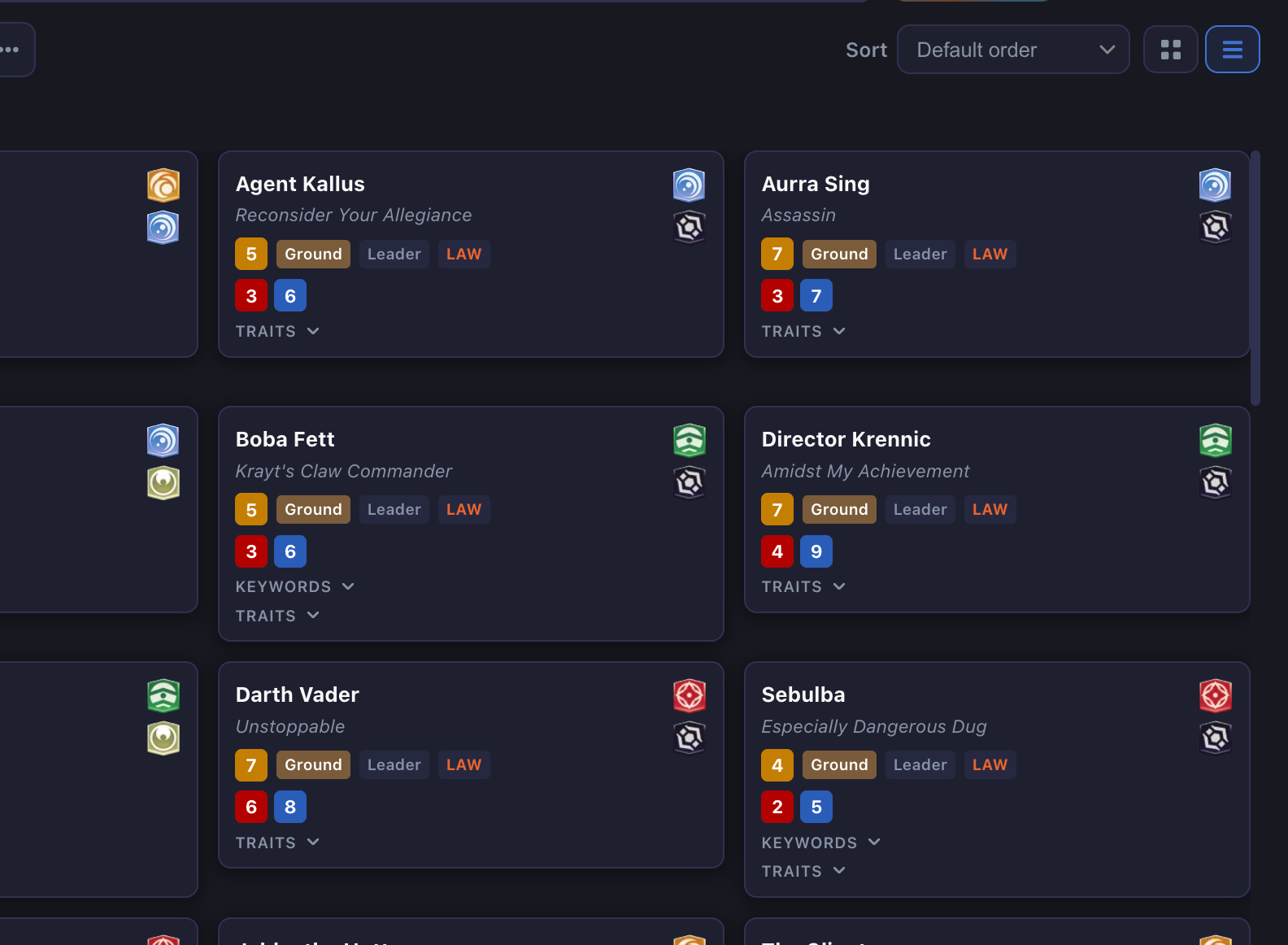
Toggle between two display modes:

  • Expanded — Card image grid (responsive 2–6 columns)

  • Condensed — Compact list with card text visible (responsive 1–6 columns)

Screenshot: Expanded vs condensed view toggle

Card Interactions

Hover Popover

On desktop, hovering over a card tile for a moment shows a larger preview of the card. For Leader cards, the popover shows the front by default — hold Cmd or Alt to see the deployed (back) side.

Flip Button

Cards with a back side (Leaders, some special cards) show a flip button (↻) on hover. Click it to toggle between front and back.

Each card has an eye icon button that links to the full card detail page.

Pagination

Cards load in batches of 100. As you scroll down, more cards load automatically. All your filter and search state is preserved if you navigate to a card detail page and come back.

Last updated